Pocketalk Enterprise App
User Manual
- Getting Started
- Translating
- Viewing Information on Pocketalk Ventana
- Basic Screens
- Translating Text (Camera Translation)
- Using Favorites
- Various Settings
Version: 1.0
Date: July 7th, 2025
Copyright (C) POCKETALK CORPORATION All Rights Reserved.
- Home
- Translating
Translating
You can translate simply by pressing the button and speaking to your handheld device.
-
Press and hold the
button on your handheld device. When you hear a beep, begin speaking. Release the button when you have finished speaking.
-
View the translation.
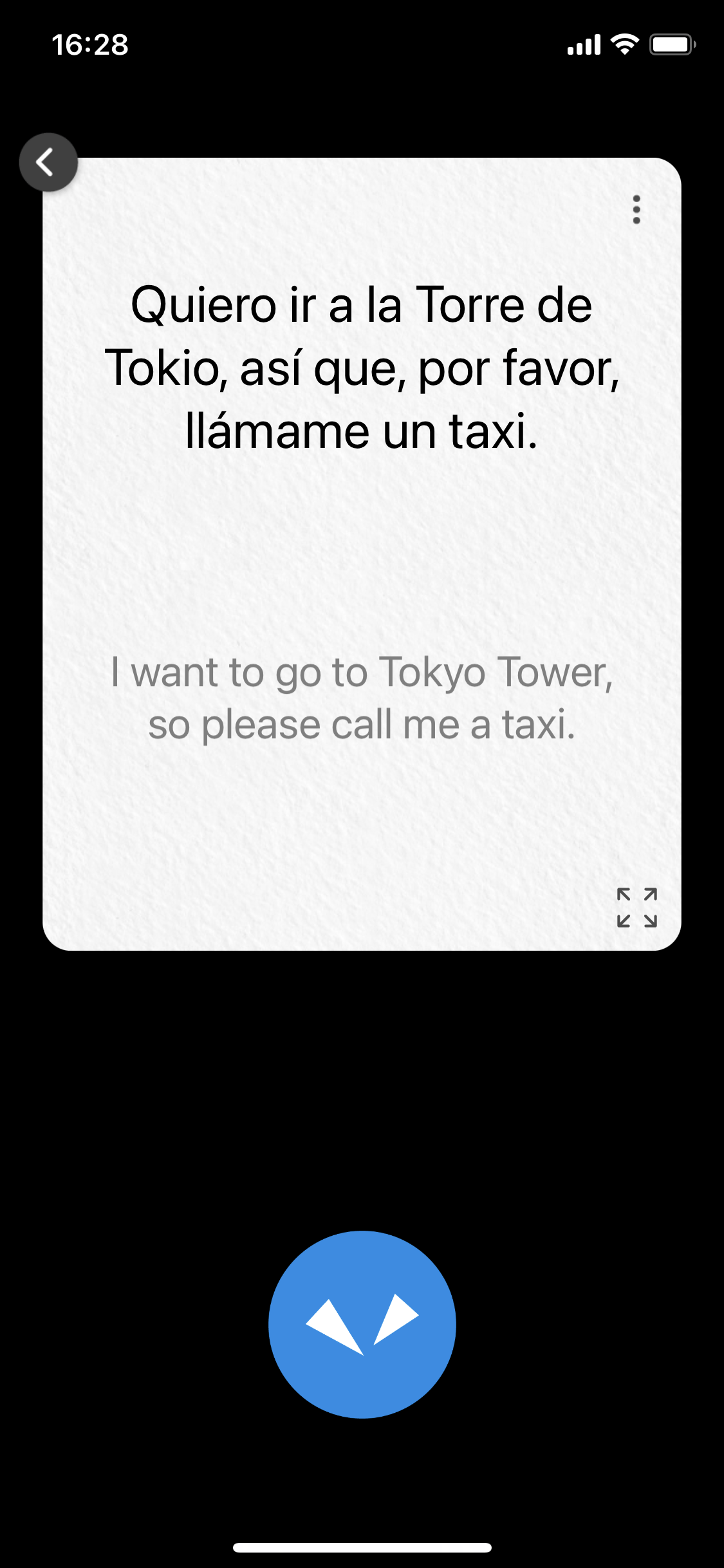
Both your original spoken words and the translated text will be displayed on screen, and the translation will also play aloud.
For languages without audio support, only text translation will be displayed.
Adjust the volume of your handheld device as needed.
 button on your handheld device. When you hear a beep, begin speaking. Release the
button when you have finished speaking.
button on your handheld device. When you hear a beep, begin speaking. Release the
button when you have finished speaking.
- Tap
- Tap and hold
- Tap
 to return to
the Home screen.
to return to
the Home screen. at the lower
right corner of the screen to enlarge the translation result.
at the lower
right corner of the screen to enlarge the translation result.- Home
- Translating
- Changing the Translation Direction
Changing the Translation Direction
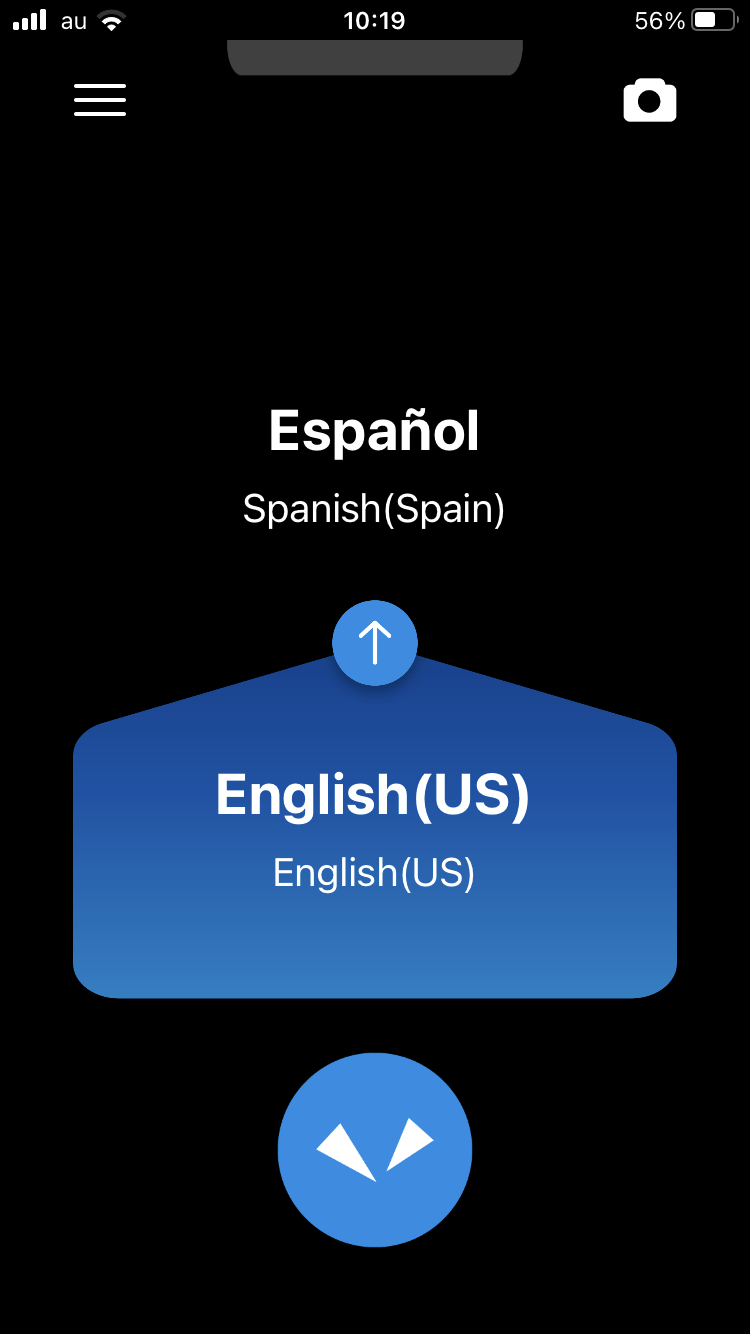
The translation languages are displayed as a pair at the top and bottom of the screen.
The
language with the blue background is translated to the language with the black background (in the
direction of the arrow).
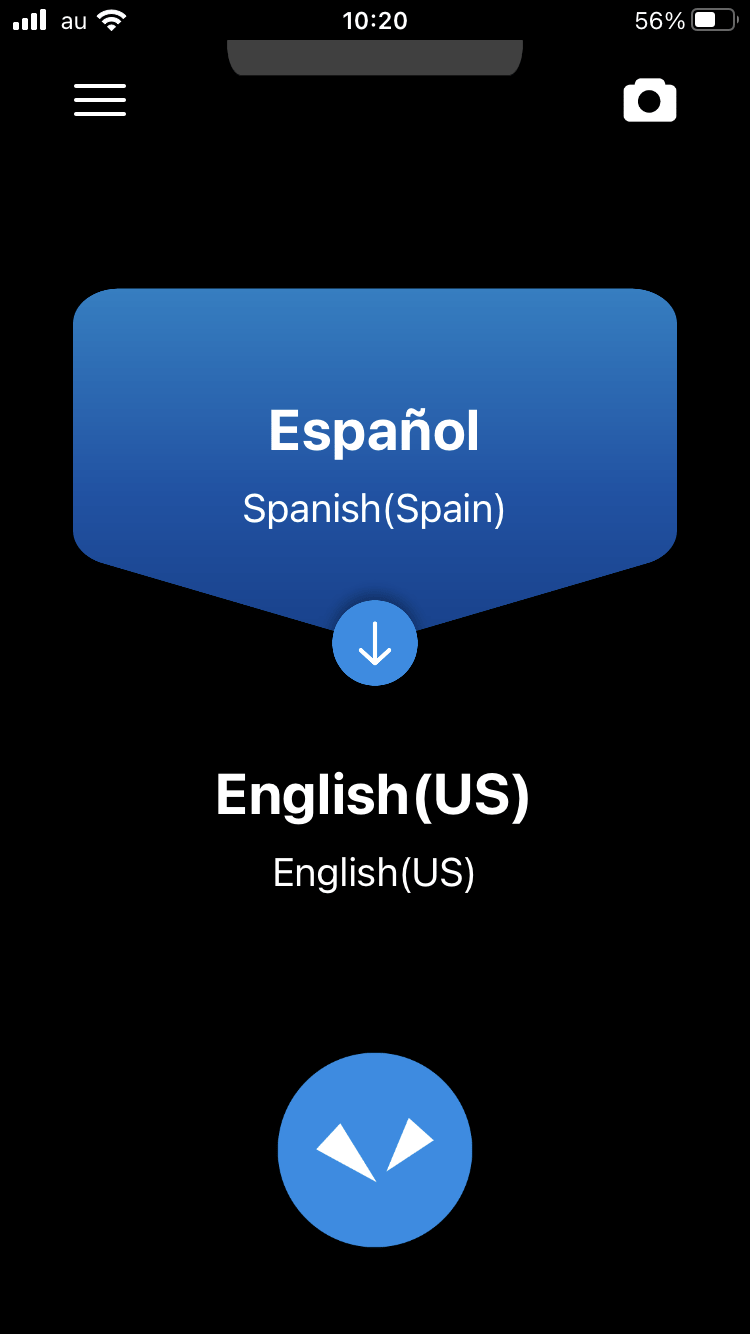
You can change the direction of translation by tapping 
- Home
- Translating
- Changing the Translation Language
Changing the Translation Language
If you tap a language on the home screen, a list of languages is displayed.
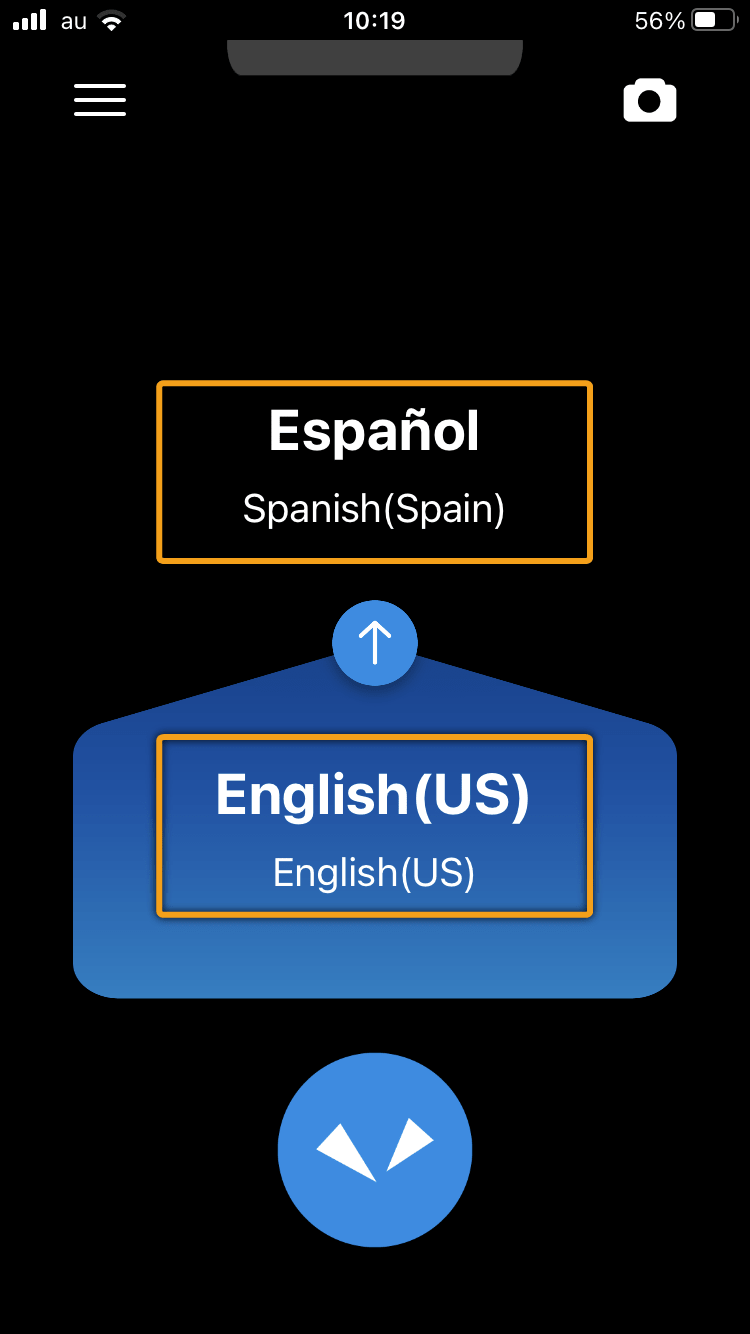
Scroll through the list of languages, select the language you want to use, and tap [OK] at the upper
left.
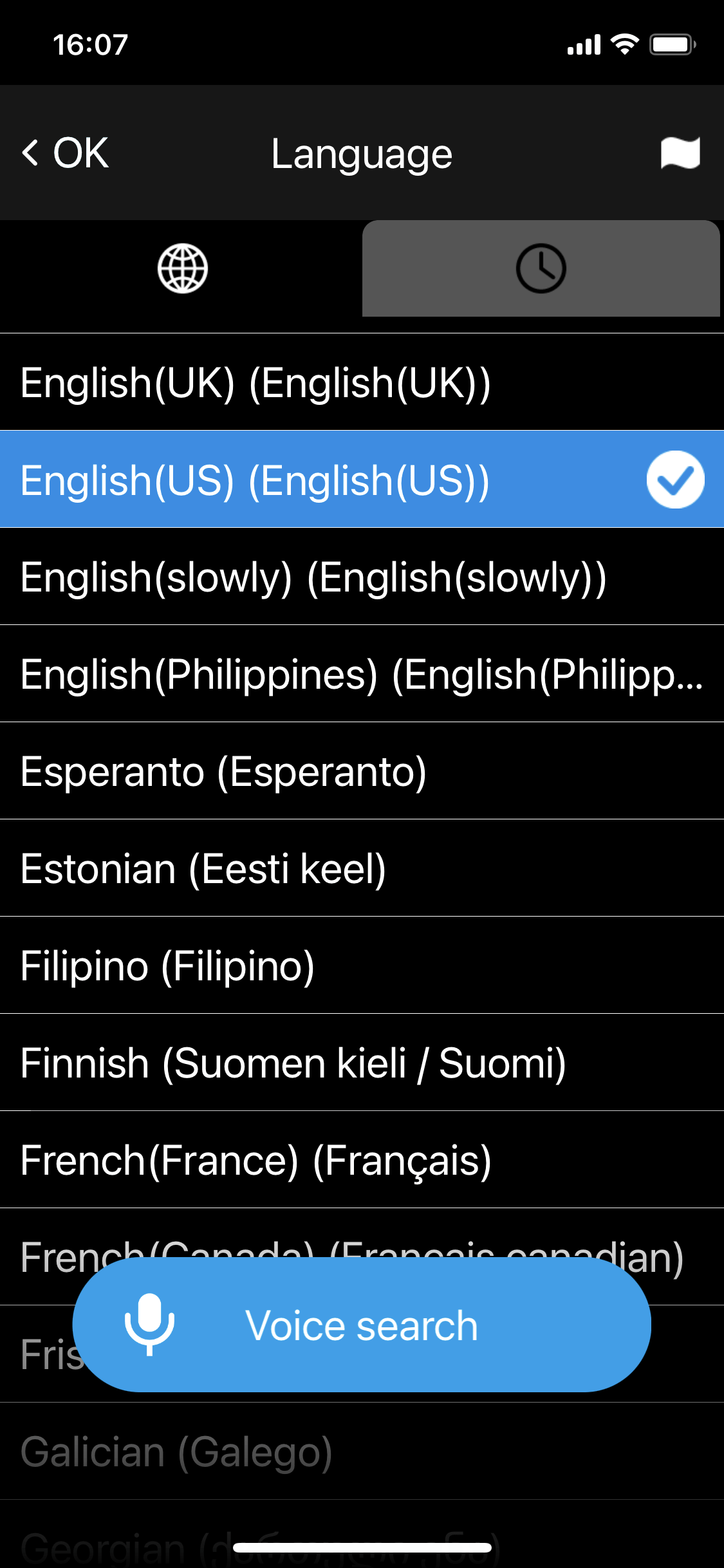
You can easily search for the language you want with the following methods.
 |
Select from languages you have used previously. |
 |
Select from a list of national flags and country names. Choose from the primary languages spoken in each country. |
 |
Press and hold the button with this icon to search by voice. |
NOTE
Some languages do not support voice input or voice output of translation results. In those cases,

For details, refer to the website “List of supported
languages”.
- Home
- Translating
- Using the Translation History
Using the Translation History
Once you translate, the translation history will be saved in the device.
You can reuse previous
translations.
Swipe down from the top of the screen to see a list of your previous
translations.
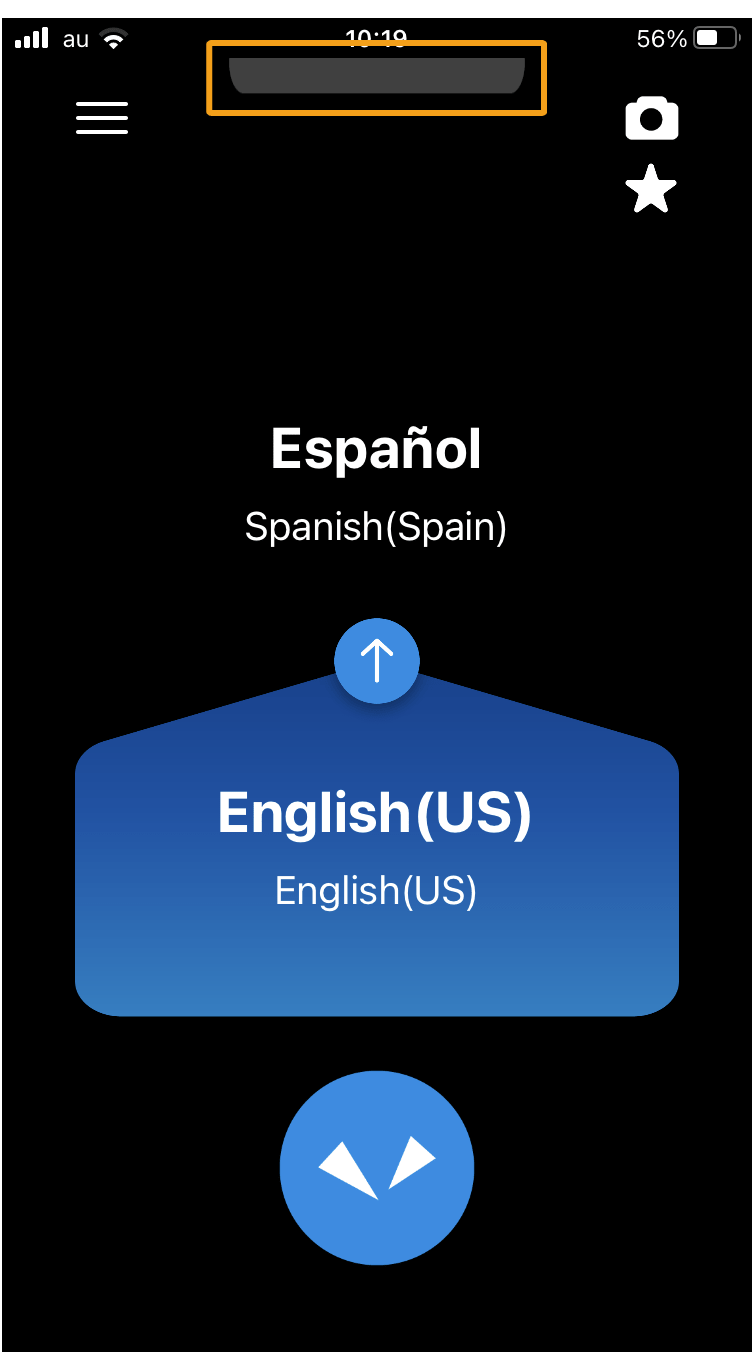
You can view older translations as you scroll upward.
The history saves up to 10,000
translations.
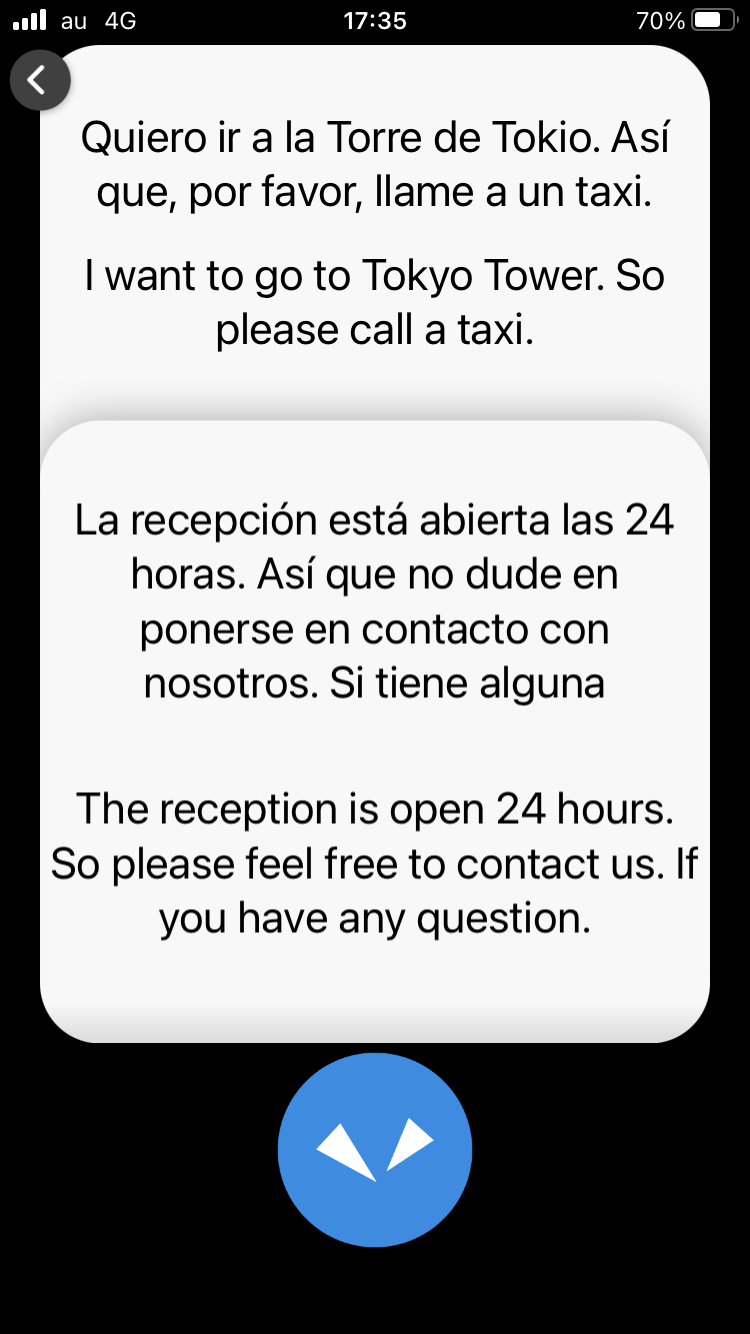
By tapping one of the translations from the translation history list, you can add the translation result to your Favorites or use the option menu to translate into other languages.
- To display the option menu, tap and hold a translation result or tap
- Tap
- Home
- Getting Started
Getting Started
To set up and activate the Pocketalk Enterprise App, please follow the instructions below based on your role.
For IT admin / Ventana admin
-
Install the Pocketalk Enterprise App on your handheld device using Apple Business Manager/ Apple School Manager / Managed Google Play and Mobile Device Management (MDM) system.
For End Users
-
Launch the Pocketalk Enterprise App on your handheld device.
-
Allow microphone and camera access.
-
Display the App Activation QR code on Pocketalk Ventana.
The App Activation QR code can be found under Corporate Profile in Pocketalk Ventana.
This QR code can be downloaded and shared with users, who can scan it from the app on their devices to activate it. -
Scan QR code on the handheld device.
You will receive the QR code from your IT or Ventana administrator. Tap [Start by scanning the QR code]
-
Enter your name.
You can customize the username to your preference.
This name will appear on the app's home screen, in the Pocketalk Ventana translation log, and on the [Device Details] page as [Device Name] in Pocketalk Ventana. -
Sign off and switch user.
To sign off and switch user, tap the username on the home screen.
Then, tap [Sign Off], and either enter a new username or select one from the existing list. - Please note that signing off will delete the translation history of the previous user within
the app.
However, the history on Pocketalk Ventana will remain unchanged. - Home
- Translating
- Using the Option Menu
- Home
- Viewing Information on Pocketalk Ventana
-
Go to [Device Manager] in Pocketalk Ventana and search for the device by the username.
The device name most recently configured on the handheld device will be displayed as [Device name].
-
View the information and translation history of the handheld device.
The following is an explanation of the items in the [Device Details] page, which differ when using Pocketalk Enterprise App.
For other items, refer to the Ventana Manual for more information. - IMEI2 / App ID
- The unique ID of the handheld device.
- Device Name
- The username which is set in the App.
- The name of the user who performed the last translation will appear as the [Device Name]. Those usernames once set before will not be shown in the [Device Details] page.
- Product Model
- The handheld device's operating system.
- SIM Expiration Date
- This item does not apply to the App.
- Feature Limit
- This item does not apply to the App.
- Status
- This item does not apply to the App.
- IMEI
- If the entry is for the App, this field will show the unique ID of the handheld device.
- device_name
- This field reflects the username. Even if the same device is used by multiple users, each
translation is recorded along with the name of the user who performed it. This allows admins to track
who conducted each translation.
- mnc
- This item does not apply to the App.
- lac
- This item does not apply to the App.
- cid
- This item does not apply to the App.
- networktype
- This item does not apply to the App.
- ipaddress
- This item does not apply to the App.
- devicetype
- This field will display “iOS” if the device is using EAP for iOS.
- Home
- Basic Screens
- Text Size: Adjusts the size of the displayed
text.
- Language Settings: Switch the language of the
operation screens.
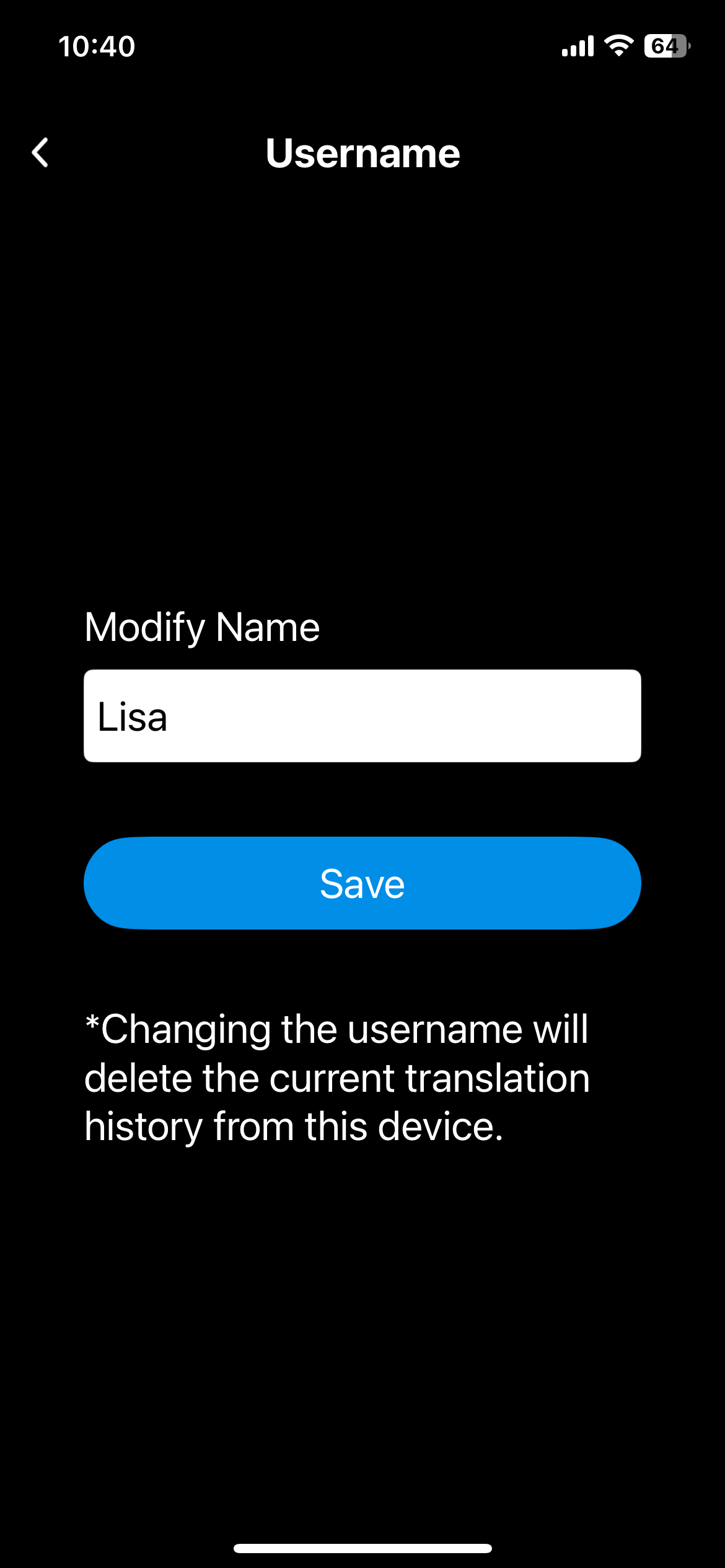
- Username: You can modify the username of this
app.
Please note that usernames already in use by other users on this handheld device cannot be set.
Modifying the username will delete the translation history of the previous username within the app. However, the history on Pocketalk Ventana will remain unchanged. - Tutorial: Displays the tutorial of this app.
- Information: Displays information such as your
app version, or third party license information.
- Reset: Resets the app settings to the initial
settings.
- Home
- Translating Text (Camera Translation)
-
Tap
Face the camera toward the text you want to translate.
- If your surroundings are dark, tap
To change the target language, tap the language name on the right side.
- To focus, touch the screen where you want to focus with your finger.
- You can change the zoom factor by touching the screen and moving the displayed gauge left or right, or by pinching in or out the screen. (The operation method differs depending on the model.)
NOTE
- You can select an image saved on your handheld device and translate it by tapping
- If your surroundings are dark, tap
-
Take a photo of the text.
Press the
- After the photo is taken, a preview is displayed.
-
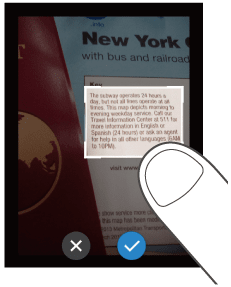
Specify the area to translate.
Touch one of the four corners of the frame with your finger and move it to change the size of the frame.
Touch the center of the frame with your finger to move the translation area.- When you have decided the area to translate, tap
- When you have decided the area to translate, tap
-
Check the translation result.
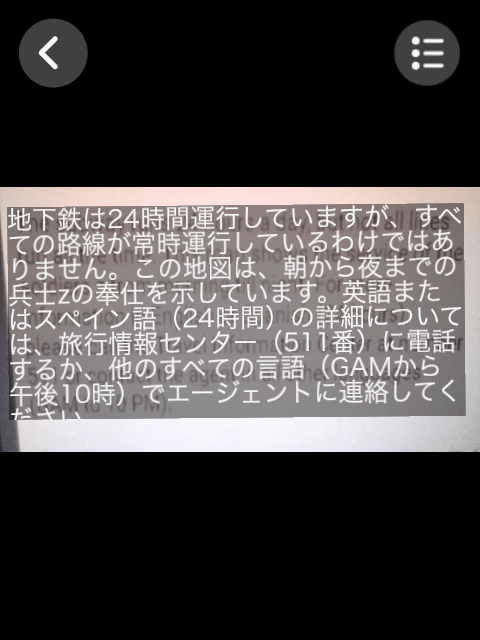
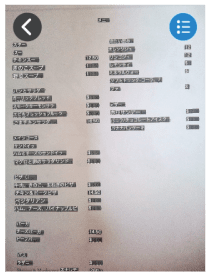
The translation result will be displayed over the image text. If you tap the translation result, the text will be displayed as a pop-up.
If you tap
If you want to translate line by line instead of as a paragraph, tap
Tapping- To close the pop-up, tap
- When you are finished translating, tap
- To close the pop-up, tap
- For a list of languages supported by camera translation, refer to the following website.
https://www.pocketalk.com/languages-countries - Home
- Translating Text (Camera Translation)
- Using the camera translation history
- The camera translation history saves up to 100 translations.
- Home
- Using Favorites
-
Tap
Favorites added from the translation history are displayed.
-
Tap the phrase you want to use.
The phrase is played back.
- Home
- Various Settings
-
Tap
A list of settings is displayed.
- Text Size
- Select from five types.
- Language Settings
- Select the display language.
- Username
- You can modify the username of this app.
Please note that usernames already in use by other users on this handheld device cannot be set.
Modifying the username will delete the translation history of the previous username within the app. However, the history on Pocketalk Ventana will remain unchanged. - Tutorial
- Displays the tutorial of this app.
- Information
- Displays information such as your app version, or third party license information.
- Reset
- Deletes all information such as your history and favorites.
- Home
- Various Settings
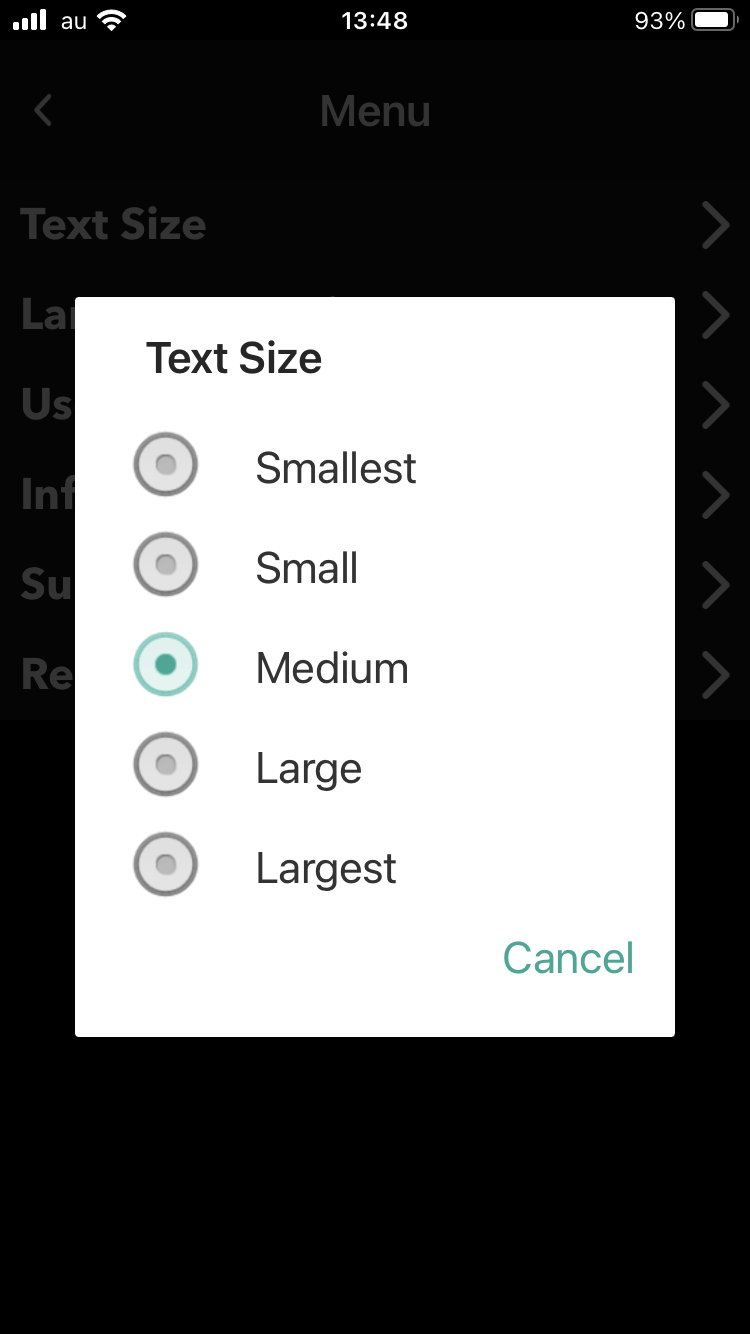
- Changing the Size of the Text
-
Tap
Select from five types.
- Home
- Various Settings
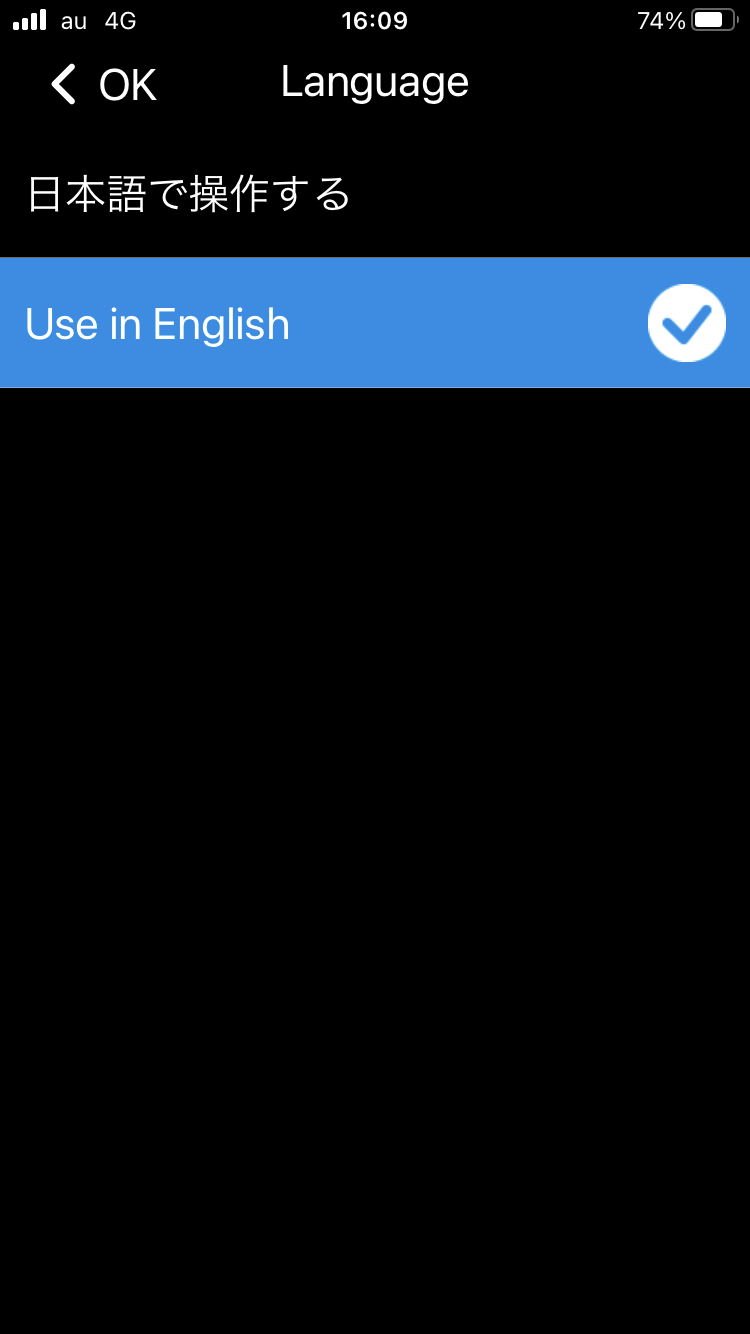
- Changing the Display Language
-
Tap
Select a language from the displayed list and tap [OK].
- Home
- Various Settings
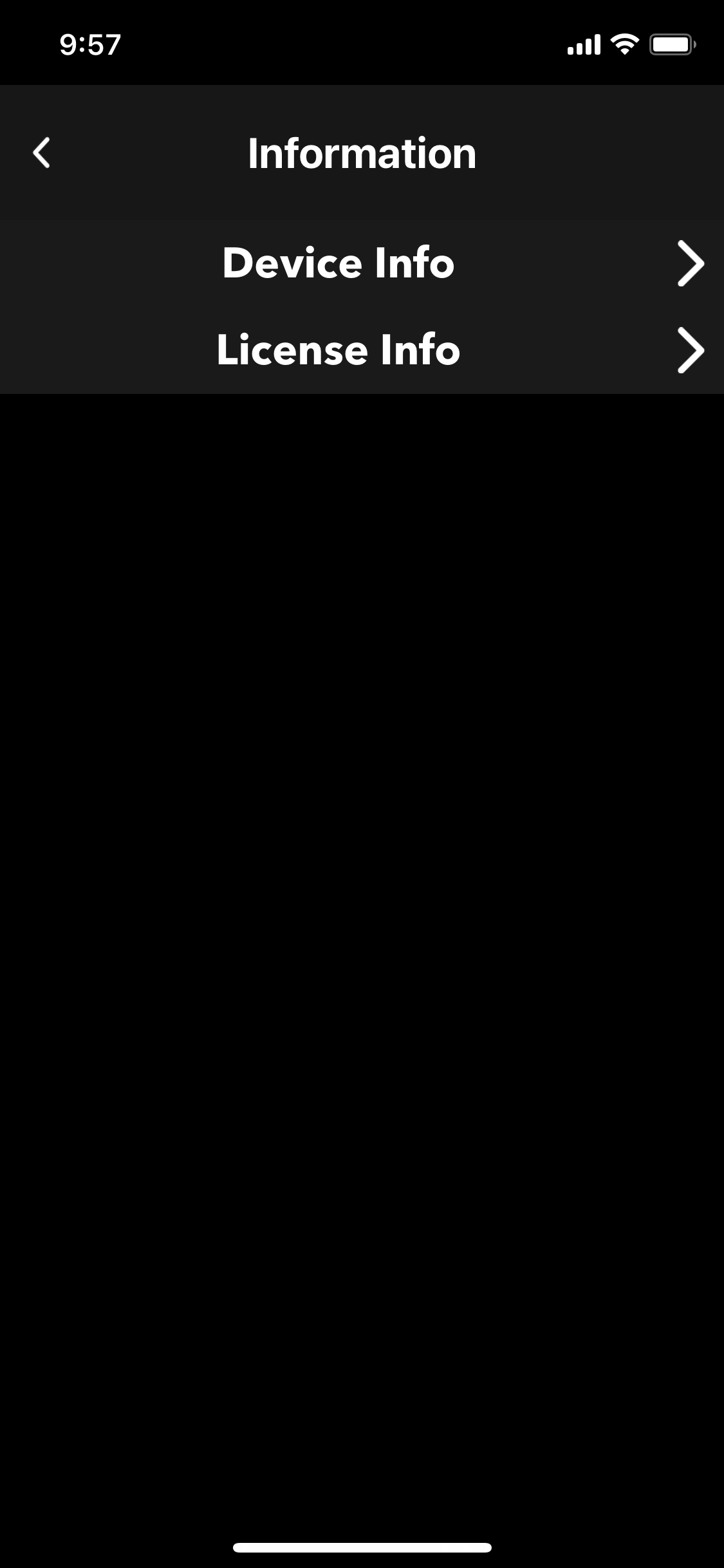
- Confirming the Version of Your App/span>
-
Tap
Tap the item for which you want to check the contents.
- Device Info
- Displays the version of your app.
- License Info
- Displays third party license information.
- Home
- Various Settings
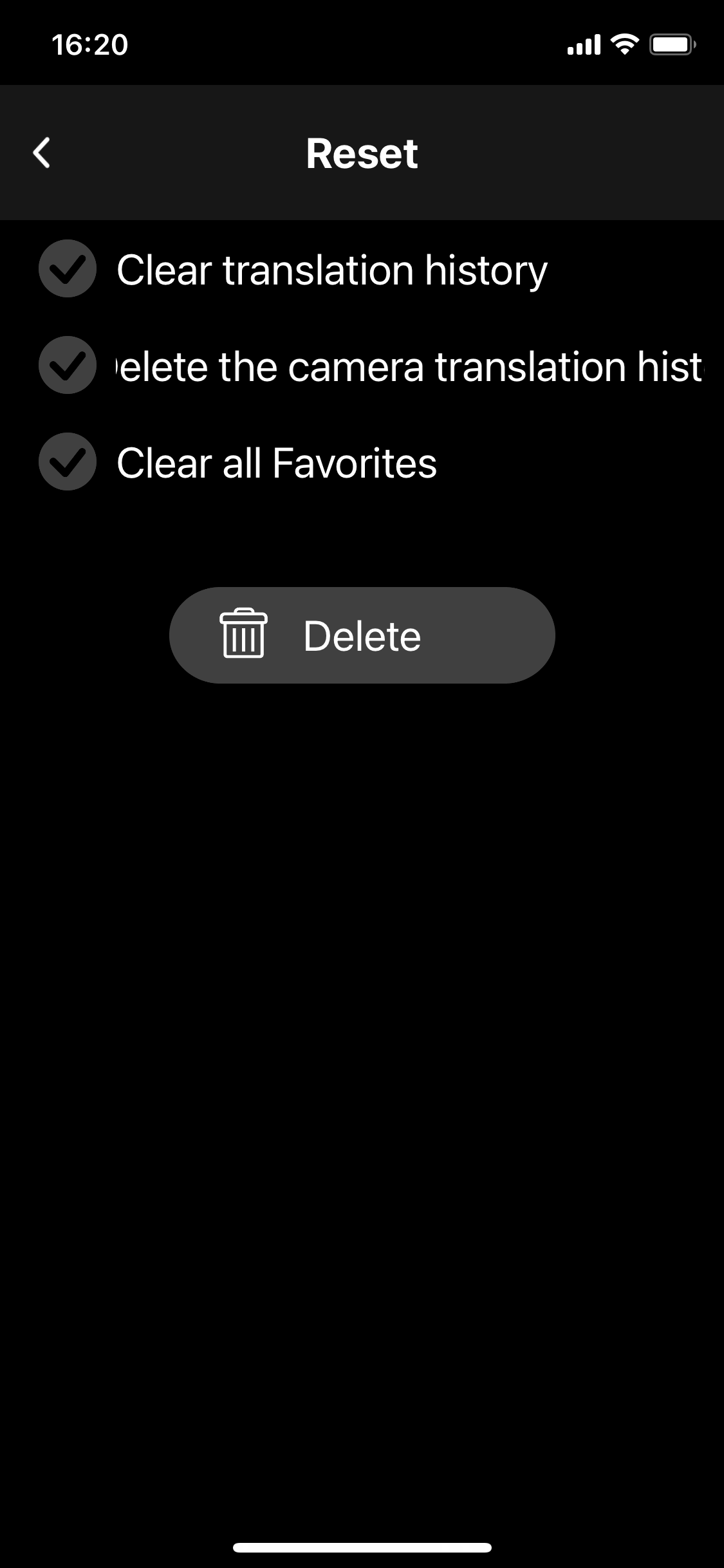
- Using the Reset Feature
- Delete all translation history
- Delete all camera translation history
- Delete all Favorites
- Delete all data (setting information and various histories)
-
Tap
Select the displayed items as needed and tap [Delete].
- All Favorites or translation history will be deleted.
To delete individual entries, refer to the following.
-
-
-


NOTE
Using the Option Menu
You can use the following features via the option menu.

NOTE
The option menu is displayed immediately after translation and tapping 
Add to Favorites
Tap this item to register a translation result as a favorite and quickly display it from 
You can also favorite by
swiping a translation in the translation history list to the right.
Translate into other languages
You can translate into a language different from the translated language.

The results of translating into other languages are added to the translation history.
Reverse translation
This translates the text back into its original language.
The results of translating into the
original language are added to the translation history list.
Delete from History
This deletes the selected translation result from the translation history list.
You can also
delete by swiping the translation to the left.

NOTE
This feature is not displayed in the option menu immediately after translation. It is available in the option menu in the translation history.
Viewing nformation on Pocketalk Ventana
You can view the translation history from the Pocketalk Enterprise App on each handheld device via Pocketalk Ventana.
How to View the [Device Details] Page

NOTE

How to View the Reports Page and Export Log Data
The Log Data allows you to review details such as the username associated with each translation conducted on the Pocketalk Enterprise App.
The following is an explanation of the key fields in the log data file, particularly when using the Pocketalk Enterprise App.
For detailed instructions, refer to the Ventana Manual for more information.
Basic Screens
This section describes the Home screen used for translation.
Home and Setting Screen

| A | Displays the menu. |
| B | Displays the translation history when swiped downward.Using the translation
history |
| C | Takes a photo of text and translates it.Translating text (camera
translation) |
| D | Displays your Favorites. |
| E | Changes the language to be translated (blue background indicates the source language). |
| F | Returns to the Home screen. |
| G | Sets up the app. |
| H | Displays your Username. |
Translating Text (Camera Translation)
You can easily translate text such as city signs and documents.
 [Camera
translation].
[Camera
translation]. (flash).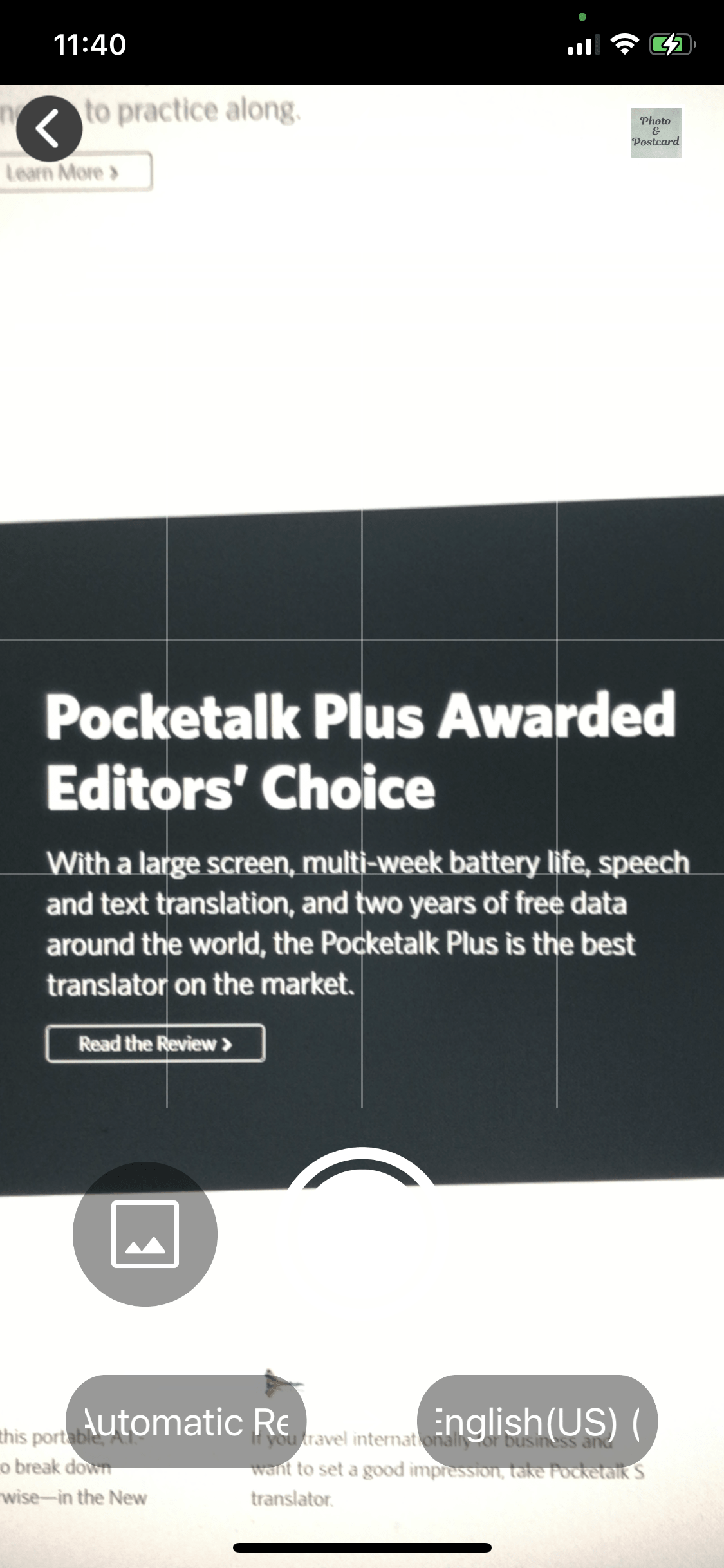

 .
. button to take a photo.
 .
.
 , Line Mode
will start.
, Line Mode
will start.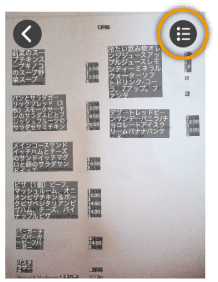
 at the top of the
screen plays back the translated text, and tapping
at the top of the
screen plays back the translated text, and tapping 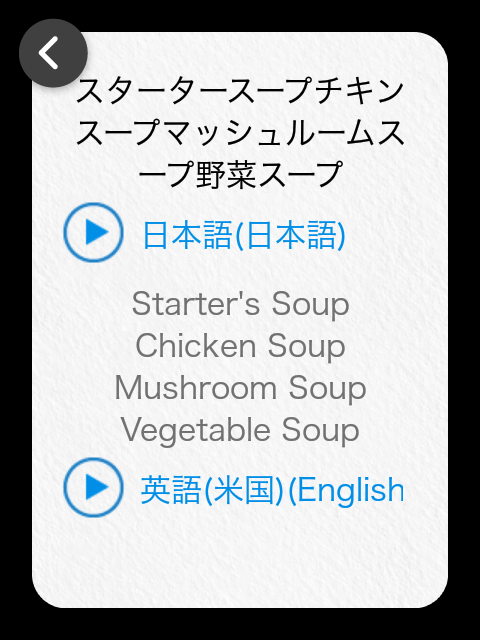
NOTE
Using the camera translation history
You can reuse previous camera translations.
If you tap the thumbnail at the top of the screen, the camera translation history will be displayed as a list.

Tap the image you want to reuse to recall the translation data.

By tapping and holding one of the images from the history list, you can open the translation data or use the option menu to share or delete images. To delete the entire history, refer to Using the Reset Feature.
Using Favorites
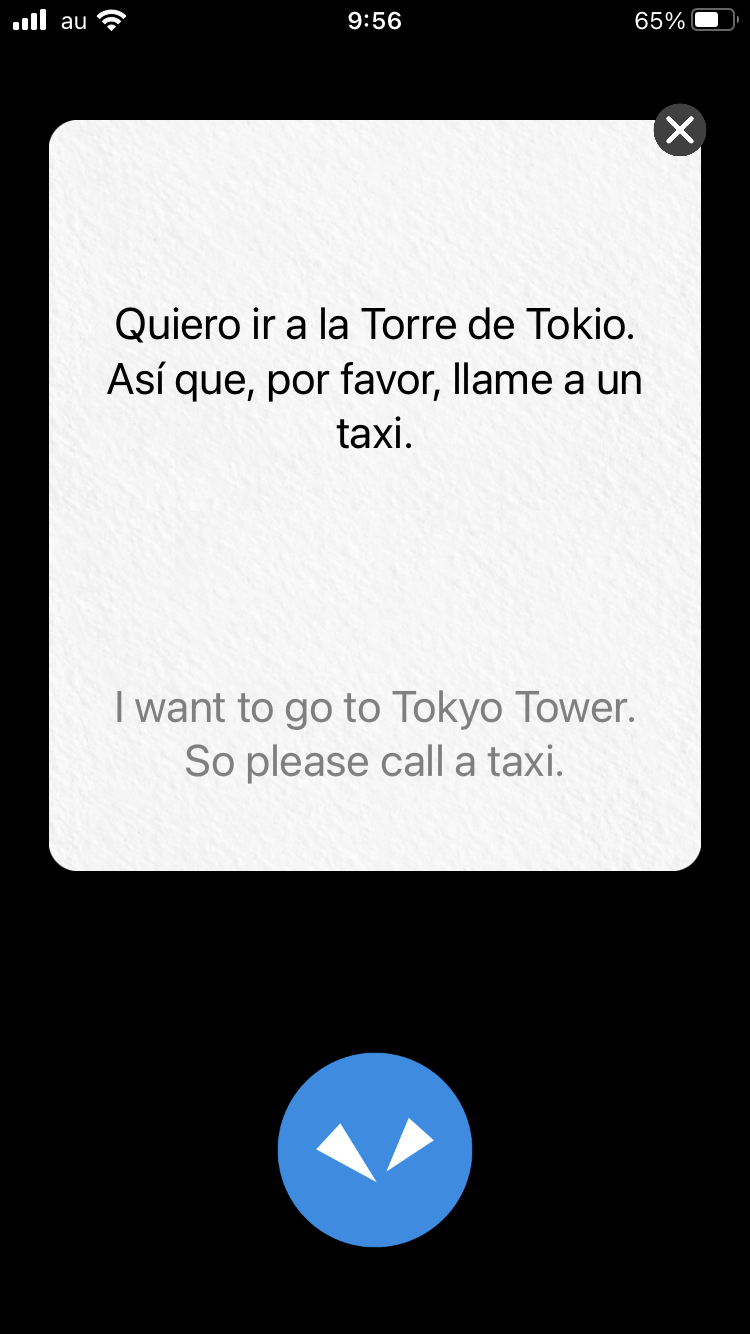
You can easily recall the phrases that you added to Favorites from the translation history.
NOTE
[Favorites] is not on your home screen when you first
install your app. It will be displayed when you add phrases displayed in the translation history to
Favorites.
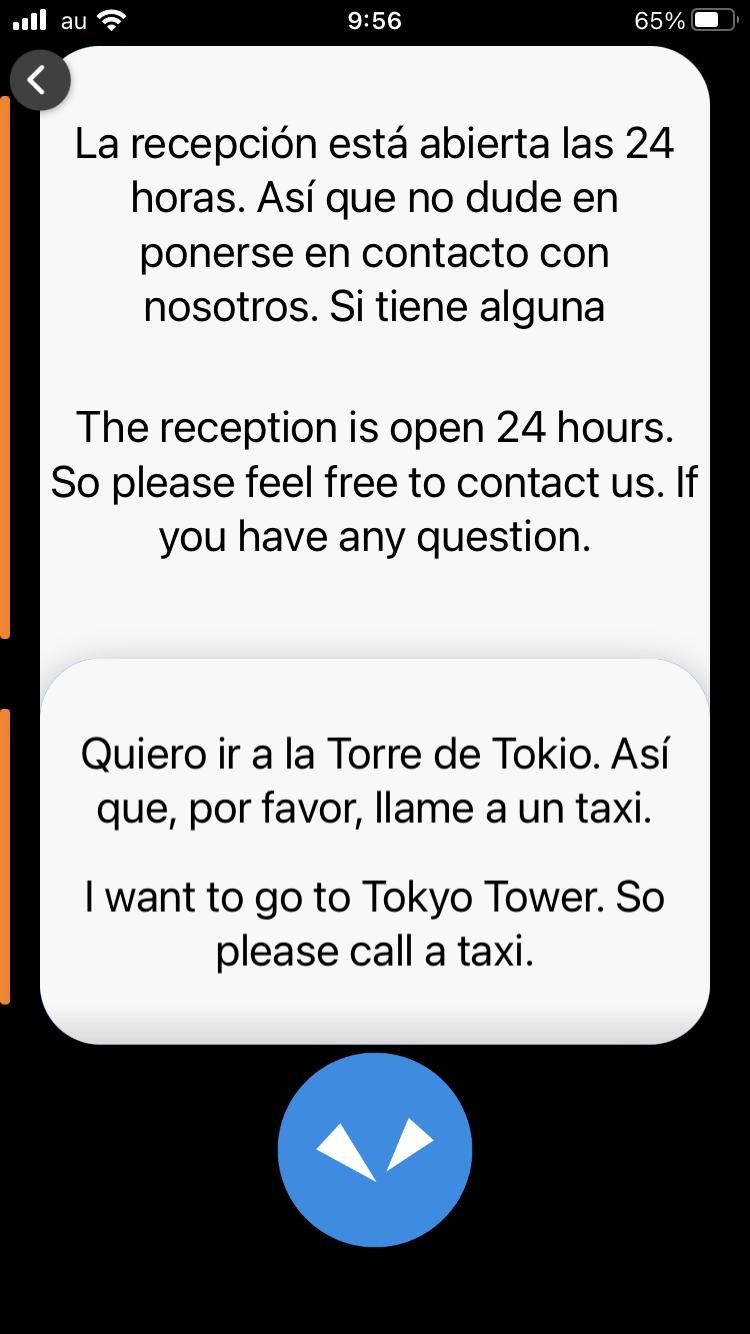
Delete from Favorites
Swipe the phrase to the left to delete it from Favorites.
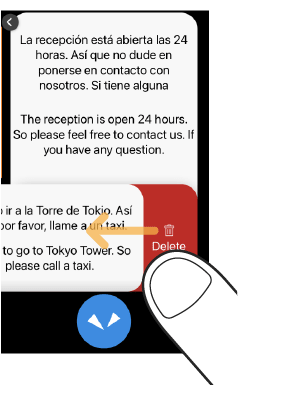
NOTE
By tapping and holding any one phrase from the Favorites list, you can use the option menu to
translate that phrase into other languages or use reverse translation.
Various Settings
About [Menu]
Allows configure settings such as the text size.
 [
[
You can configure the following.
Changing the Size of the Text
Changing the Display Language
Confirming the Version of Your App
Using the Reset Feature
You can use the reset feature to do the following.